
Sign-in codes: signing in, connecting Telegram and an authenticator app
Step by step: sign in with a code, connect your Telegram account, connect an authenticator app with the QR code, use email codes and backup codes.
On this page
What sign-in codes are
After your password, Silux Connect can ask for a 6-digit code that only you can get: by email, from our Telegram bot, or from an authenticator app on your phone. It protects your saved remote desktops and SSH passwords even if someone learns your password.
Watch it: Sign-in codes by email, Telegram or authenticator app (30 seconds).
Signing in on the website
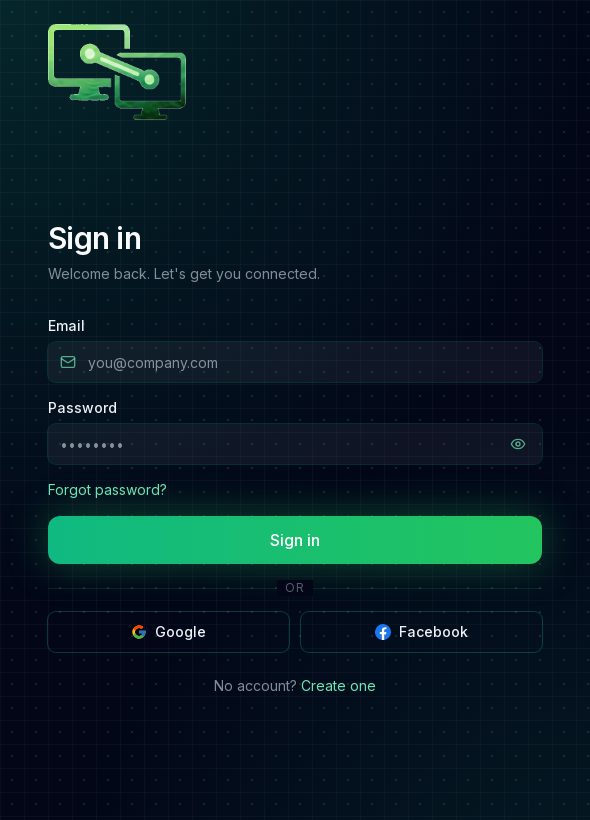
- Open the Silux Connect website and press Sign in.
- Type your Email and Password and press Sign in.
- If your account uses sign-in codes, the next page, Enter your sign-in code, tells you where to look:
- Email: “Please check your email (y•••@example.com)…” — open the newest email from Silux Connect.
- Telegram: “Please check Telegram…” — open the chat with our bot.
- Authenticator app: “Open your authenticator app…” — open the app and find Silux Connect.
- Type the 6 digits into the boxes (you can also paste them) and press Verify.
- Send a new code sends another email or Telegram message (once every 30 seconds).
- Codes by email or Telegram work for 10 minutes and only once. After five wrong codes, ask for a new one.
- No code? Type one of your Backup codes in the box under “Can’t get a code?”.
Signing in on the desktop and phone apps
- Open Silux Connect, enter your Email and Password and press Sign in.
- If your account uses codes, Enter your sign-in code appears with the same “where to look” message (email, Telegram or your authenticator app). Type the code and press Verify.
- If your account has no codes, you go straight in.
Choosing a method (on the website)
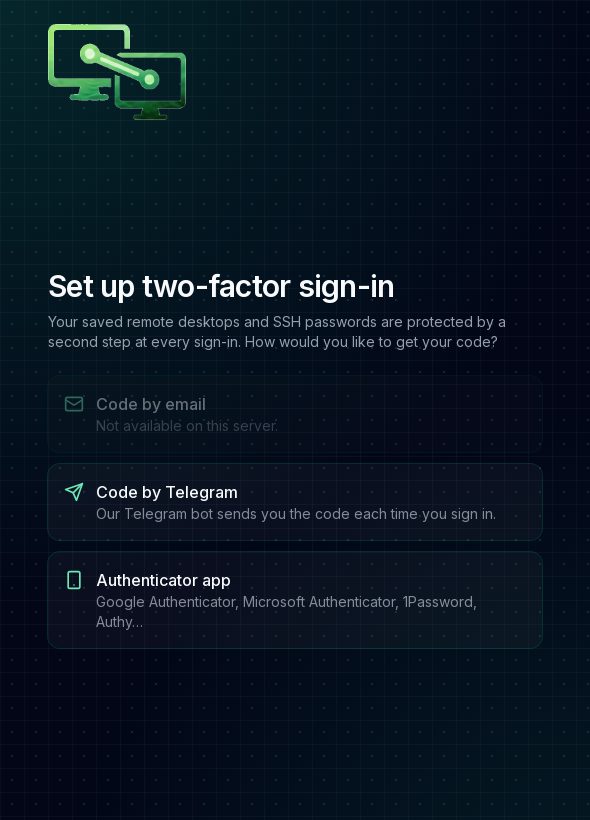
You see the choice the first time you sign in on the website (if codes are required), or when you press Turn on sign-in codes or Change how I get codes in Settings → Two-factor sign-in.
| Method | Good for |
|---|---|
| Code by email | Simplest: nothing to install. Needs access to your email. |
| Code by Telegram | Fast on your phone if you already use Telegram. |
| Authenticator app | Works without internet on the phone; the most secure choice. |
Connecting your Telegram account
- Install Telegram on your phone or computer and sign in to it, if you haven’t already.
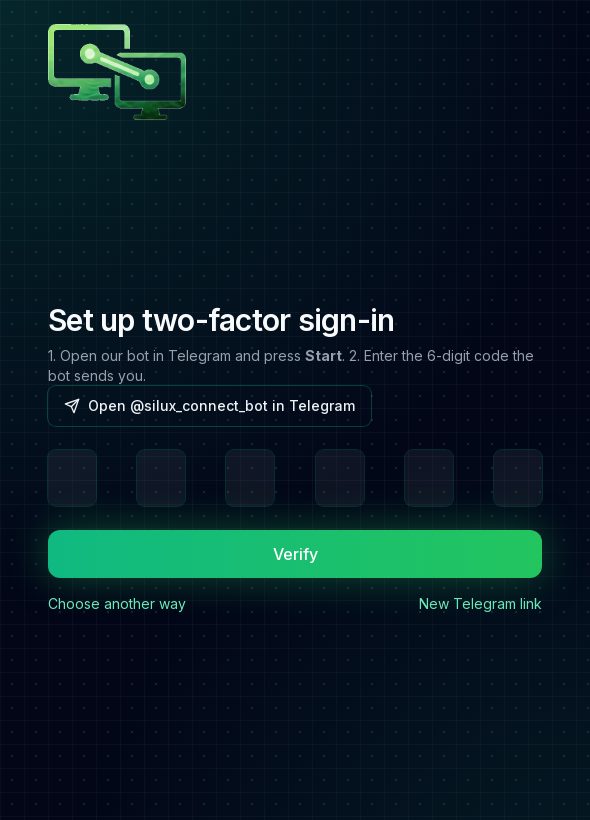
- On the Silux Connect website, choose Code by Telegram.
- Press Open @… in Telegram. Telegram opens a chat with the Silux Connect bot. (No Telegram on this computer? Sign in to the website on the phone that has Telegram and press the button there, or use Telegram Web in your browser.)
- In Telegram press Start at the bottom of the chat. The bot answers with a 6-digit code and “✅ This chat is linked.”
- Go back to the website, type the code and press Verify.
- Save the ten Backup codes it shows, tick I have saved my backup codes and press Continue.
- From now on every sign-in sends the code to that Telegram chat.
- The link works for 15 minutes. If it expired, press New Telegram link.
- Pressing Start without the link only shows instructions; your chat is linked only through the link.
- New phone or Telegram account? Change the method in Settings and link the new chat the same way.
Connecting an authenticator app (QR code)
- Install an authenticator app on your phone: Google Authenticator, Microsoft Authenticator, 1Password, Authy or any app that supports “time-based” codes.
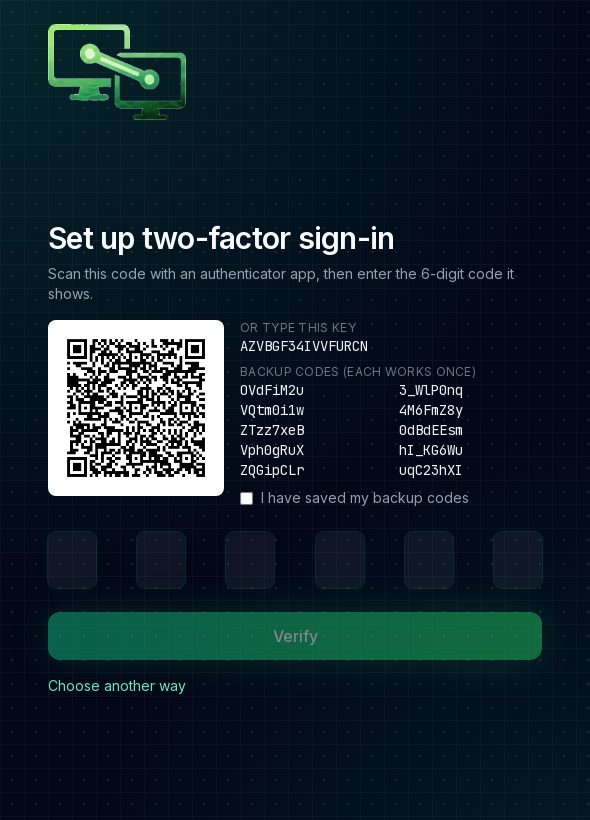
- On the Silux Connect website, choose Authenticator app. A QR code appears with a key below it.
- In the app, add an account: Google Authenticator + → Scan a QR code; Microsoft Authenticator + → Other account; 1Password → edit an item → One-time password → scan. Point the camera at the QR code on the screen.
- Can’t scan? Choose Enter a setup key in the app, type the key shown under Or type this key, pick “Time based”, and save.
- The app now shows Silux Connect with a 6-digit code that changes every 30 seconds.
- Save the ten Backup codes shown next to the QR code (print them or keep them in a password manager) and tick I have saved my backup codes.
- Type the code from the app into the 6 boxes and press Verify.
Using codes by email
- On the website choose Code by email. We send a code to your sign-in email straight away.
- Open the email “123456 is your Silux Connect sign-in code” (German if your browser is German) and type the code.
- Save your backup codes and continue. Every later sign-in emails you a new code.
- Not arriving? Check spam, wait a minute, then press Send a new code.
Backup codes
You get ten backup codes when you set up or change your method. Each one signs you in once, in place of the 6-digit code — use them if you lose your phone or can’t get email. Changing the method gives you ten new ones and the old ones stop working. Out of codes and locked out? Ask your workspace owner.
Changing or turning off sign-in codes (website)
- Sign in on the website and open Settings → Profile → Two-factor sign-in.
- Change how I get codes: pick the new method, enter your account password, then connect it as described above and enter a code from it.
- Turn off sign-in codes (only when your platform makes codes optional): enter your account password and press Turn off. Turn on sign-in codes brings them back.
- In the apps, Settings → Two-factor sign-in shows your method and opens the website for changes.
For the platform owner
- Email codes use Brevo: add Brevo API key and Brevo sender email (a sender verified in Brevo) in Admin → Secrets. SMTP also works.
- Telegram codes use your bot: add Telegram bot token in Admin → Secrets.
- Admin → Settings → Sign-in: Require a sign-in code for every account (off = optional, each person decides on the website) and switches for Code by email, Code by Telegram and Authenticator app. All three off turns codes off for everyone.
- Each person’s method shows in Admin → Users; every change, code sent, sign-in and sign-out is in the Activity log.